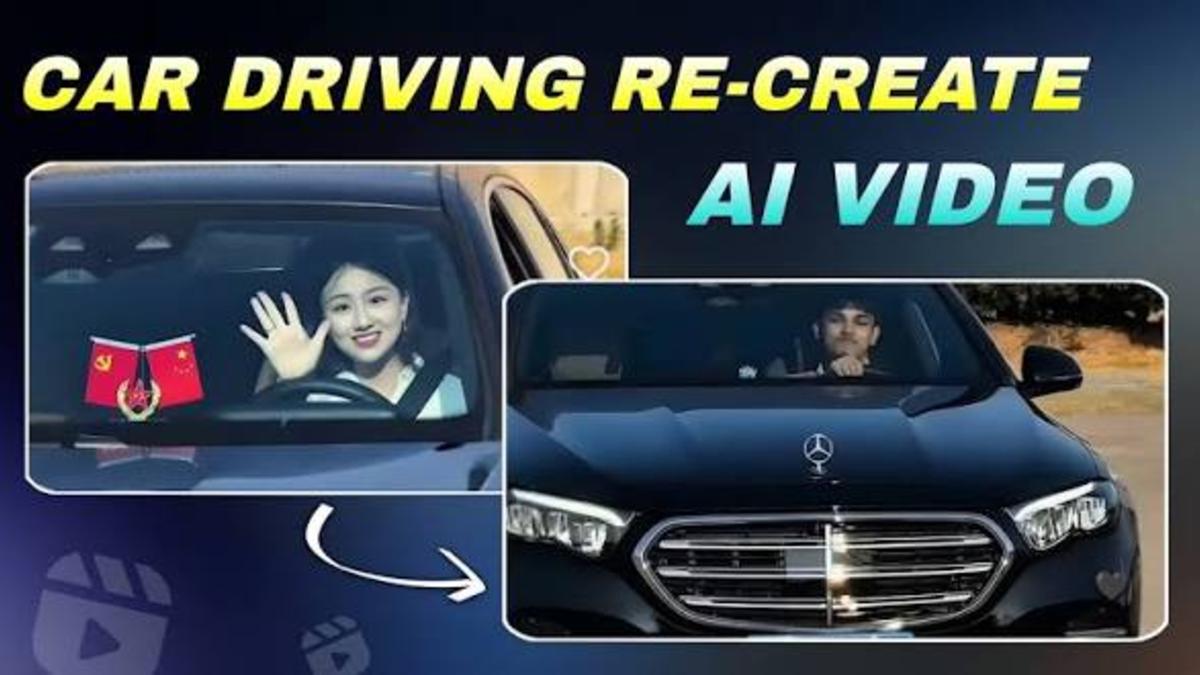
How to Create Realistic Car Driving Videos with AI – AI Photo to Car Video
Have you ever looked at an AI-generated car image and wondered what it would look like if the car were actually driving on the road?
With today's AI video tools, you don't need a real camera, an expensive car, or a professional video crew to create that kind of content. You can start with a single car photo and turn it into a realistic-looking driving video using AI.
This process is commonly known as AI photo to video or image-to-video generation.
In this guide, I'll explain how you can turn a car photo into a realistic driving video, what kind of images work best, and how to write prompts that produce better results.
What Is AI Photo to Car Video?
AI photo-to-video technology can take a still image and generate movement around it.
For example, you might have a photo of a sports car parked on a road. Instead of keeping it as a static image, an AI video generator can create a short clip where the car appears to move forward while the background and camera also show realistic motion.
Depending on the tool you use, you can create effects such as:
- A car driving on a highway
- A vehicle moving through a city
- A sports car cruising on a mountain road
- A car driving at night
- A cinematic road trip scene
- A moving camera shot around a parked vehicle
The final result depends heavily on the quality of your original image and the prompt you provide.
What Do You Need to Create an AI Car Driving Video?
You don't need much to get started.
Usually, you need just three things:
1. A good-quality car photo
2. An AI image-to-video tool
3. A clear video prompt
The most important part is probably the first one. If the original image is blurry, distorted, or has strange-looking wheels and body details, the AI may have difficulty creating a convincing animation.
Step 1: Choose a Good Car Image
Start with a high-quality image of the car you want to animate.
A clear image with good lighting usually produces better results. Try to choose a photo where the entire car is visible and there is enough space around it.
For example, an image showing a car from a three-quarter front angle can work particularly well for a driving scene.
Before uploading your image, check a few things:
- The car should be clearly visible.
- The wheels should look natural.
- Avoid heavily blurred images.
- Try to use a high-resolution image.
- Make sure the background is not extremely complicated.
You can use your own photograph or an AI-generated car image, provided you have the appropriate rights to use it.
Step 2: Upload the Image to an AI Video Generator
Once you have your image, open an AI video generator that supports image-to-video generation.
The exact interface will vary depending on the platform, but the process is usually similar.
Look for an option such as:
Image to Video → Upload Image → Add Prompt → Generate
Upload your car photo and wait for the system to process the image.
Some tools may also allow you to control the duration, camera movement, motion strength, aspect ratio, and other settings.
Step 3: Write a Realistic Car Driving Prompt
This is where you can make a big difference.
Instead of writing something very short like:
"Car driving on a road."
Try to describe the movement, environment, lighting, and camera position.
For example:
A realistic cinematic shot of the car smoothly driving forward on a modern highway. The wheels rotate naturally, the vehicle maintains realistic road movement, and the background passes by with subtle motion blur. The camera follows the car from a low three-quarter front angle. Natural daylight, realistic reflections, detailed road surface, smooth camera movement, photorealistic video.
This gives the AI much more information about what you want.
Step 4: Describe the Camera Movement
Camera movement can make an AI car video feel much more realistic.
You can experiment with different styles, such as:
Tracking Shot
The camera follows the car while it drives.
Prompt idea:
A cinematic tracking shot following the car as it drives smoothly along the road, realistic camera movement and natural motion blur.
Front Camera Shot
The camera moves toward the car from the front.
Prompt idea:
A realistic front-facing camera shot of the car driving toward the camera on a highway, smooth movement, natural lighting and realistic road details.
Side Tracking Shot
The camera moves alongside the vehicle.
Prompt idea:
A cinematic side tracking shot of the car driving smoothly along the highway, realistic wheel rotation, natural reflections and subtle background motion blur.
Rear Follow Shot
The camera follows behind the vehicle.
Prompt idea:
A realistic rear follow shot of the car driving away along a scenic road, smooth camera movement, natural lighting and realistic environmental motion.
Step 5: Add Realistic Motion
One common problem with AI-generated driving videos is unnatural movement.
The car might appear to float, the wheels may behave strangely, or the background may move too quickly.
To reduce these problems, describe the movement clearly.
Useful phrases include:
- Smooth forward movement
- Natural wheel rotation
- Realistic road motion
- Subtle motion blur
- Stable vehicle position
- Natural suspension movement
- Realistic reflections
- Cinematic camera tracking
Don't overload your prompt with dozens of instructions. A clear and focused prompt often works better than a very complicated one.
Step 6: Choose the Right Aspect Ratio
Think about where you plan to publish the video.
For TikTok, Instagram Reels and YouTube Shorts, a vertical 9:16 format is generally a good choice.
For traditional YouTube videos, a 16:9 landscape format is usually more suitable.
If you're creating content specifically for social media, vertical videos can make better use of the available screen space on mobile devices.
Step 7: Generate Several Versions
Don't worry if the first result isn't perfect.
AI video generation can produce different results from the same image and prompt. In one version, the car may move naturally, while another version may have strange wheel movement or background distortion.
Generate a few variations and compare them.
Look for:
- Natural wheel movement
- Consistent car shape
- Stable body proportions
- Realistic shadows
- Smooth camera movement
- Natural background motion
- Consistent lighting
Choose the version that looks most convincing.
A Simple AI Car Video Prompt You Can Try
If you're just getting started, try this prompt:
Create a photorealistic cinematic video of this car driving smoothly on a clean modern highway. Keep the car's original design, color, shape and details consistent throughout the video. The wheels rotate naturally, the vehicle stays firmly connected to the road, and the background moves realistically. Use subtle motion blur, realistic reflections, natural daylight and smooth camera tracking. High detail, realistic physics, cinematic photography.
You can change the environment depending on your idea.
For example, replace the highway with:
- A city street
- A coastal road
- A mountain highway
- A desert road
- A rainy street
- A nighttime city
- A countryside road
How to Make the Video Look More Realistic
Getting a car to move is relatively easy. Making it look believable is the harder part.
Here are a few things that can help.
Keep the Car Consistent
Tell the AI to preserve the original car's design, color, wheels and body shape.
This can reduce unwanted changes between frames.
Don't Ask for Too Much Movement
If you ask the AI to make the car jump, drift, spin and change camera angles all in the same short clip, the result may become unstable.
Start with simple movement.
A smooth driving shot is often more convincing than an overly complicated action scene.
Use Realistic Lighting
Lighting has a major impact on realism.
Try prompts such as:
natural daylight
or
realistic golden-hour lighting
or
cinematic nighttime street lighting
depending on your scene.
Pay Attention to the Background
The background should move at a believable speed.
If the road moves extremely fast while the car barely moves, the video can immediately look artificial.
Common Problems With AI Car Videos
AI-generated videos are improving quickly, but they are not perfect.
You may sometimes notice:
- Wheels changing shape
- Car body details shifting
- Strange reflections
- Road lines becoming distorted
- Background objects changing
- Unnatural shadows
- The vehicle appearing to float
- Sudden changes in the car's design
These problems are often referred to as AI video artifacts.
Using a clean source image and a simple movement prompt can help reduce them.
Can You Use AI Car Videos on YouTube and Social Media?
Yes, AI-generated videos can be used for content creation, but you should always check the rules of the platform you're publishing on.
If the video uses copyrighted images, logos, music, footage, or other protected material, make sure you have the necessary rights or permission.
If you're using a real person's image, avoid creating misleading content that could make viewers believe the person actually participated in something that never happened.
Transparency is also a good practice when AI-generated content could reasonably be mistaken for real footage.
Final Thoughts
Creating a realistic car driving video from a single image is now much easier than it used to be.
You don't need a physical camera setup or an expensive car shoot. With a good image, a capable AI image-to-video tool, and a well-written prompt, you can create short cinematic driving scenes in just a few steps.
The key is to keep the movement simple, describe the camera clearly, preserve the original car design, and generate several versions until you find a result that looks natural.
AI video generation is still evolving, so you may occasionally see strange details or motion artifacts. But with the right workflow, even a single car photo can become an impressive short driving scene.
Frequently Asked Questions
What is AI photo to car video?
AI photo to car video is the process of using an image-to-video AI tool to animate a still car image and turn it into a moving video.
Can I create a realistic car driving video from one photo?
Yes. Many modern AI video tools can generate motion from a single image. The quality depends on the source image, prompt and AI model.
What makes an AI car video look realistic?
Natural vehicle movement, realistic wheel rotation, consistent car details, appropriate lighting, believable background movement and smooth camera motion can all improve realism.
What prompt should I use for an AI car driving video?
A good prompt should describe the car's movement, camera angle, environment, lighting and realism. It should also tell the AI to preserve the original appearance of the vehicle.
Can I use AI-generated car videos on social media?
Generally, yes, but you should follow the rules of the platform you're using and make sure you have the rights to any images, music, logos or other copyrighted elements included in your video.
Disclaimer: This article is provided for educational and informational purposes only. AI video-generation tools, features, pricing, availability and platform policies may change over time. Always review the terms of service and content policies of the AI tool and social media platform you use. Users are responsible for ensuring that they have the necessary rights and permissions for images, music, trademarks and other content used in their videos. AI-generated footage should not be presented as authentic real-world footage when doing so could mislead viewers.